
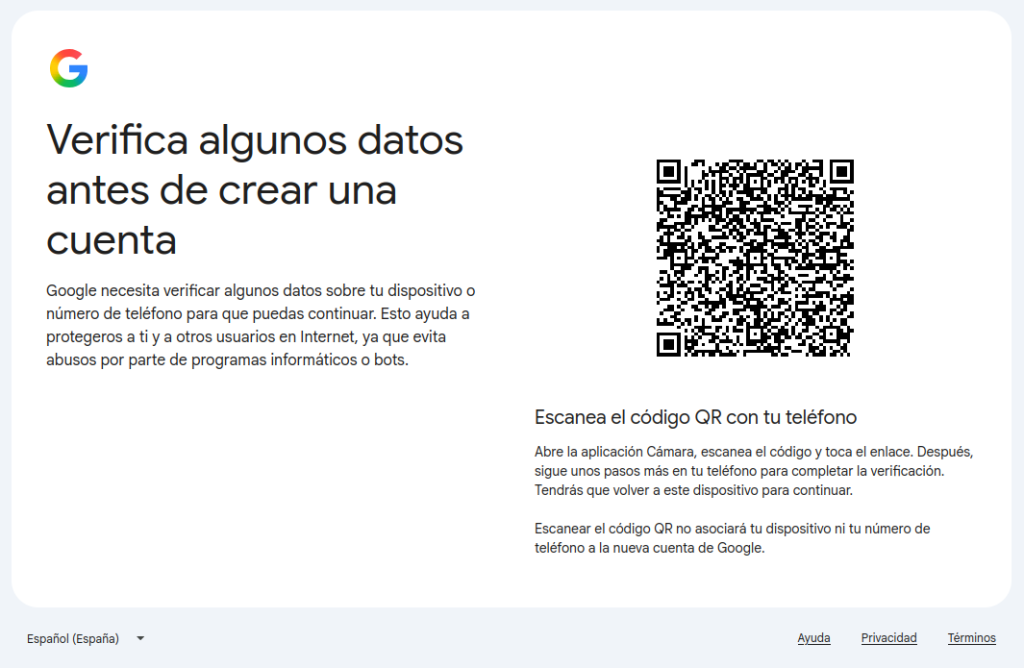
In class, I had to sync my email and chat with my phone, and we started by syncing the email.
First of all, you need to go to Gmail to create the account.
Syncing email and chat on mobile

After clicking “CREATE ACCOUNT”, it will ask us to fill in our details.
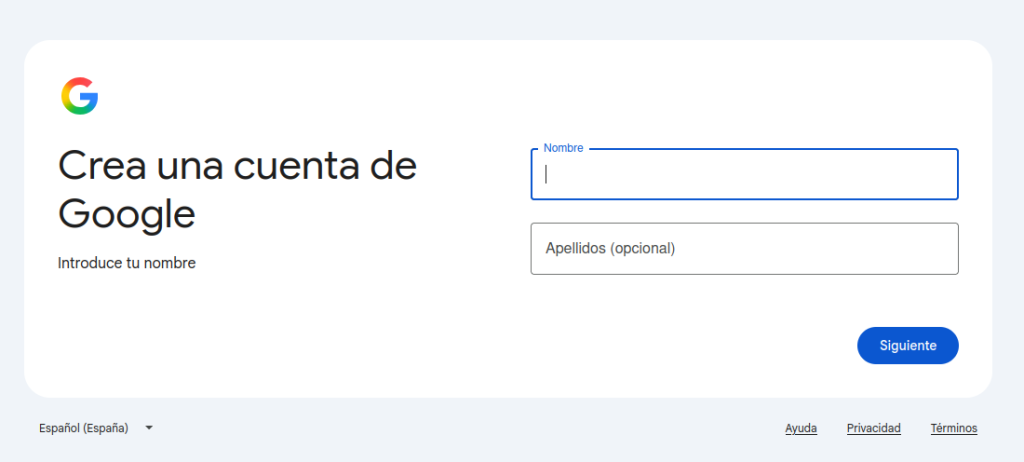
First, it will ask for our first and last name, followed by the year we were born.
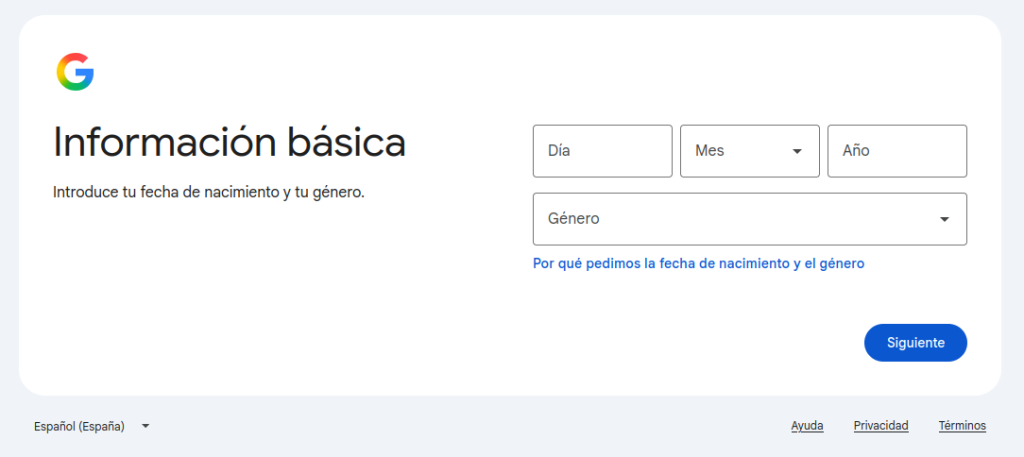
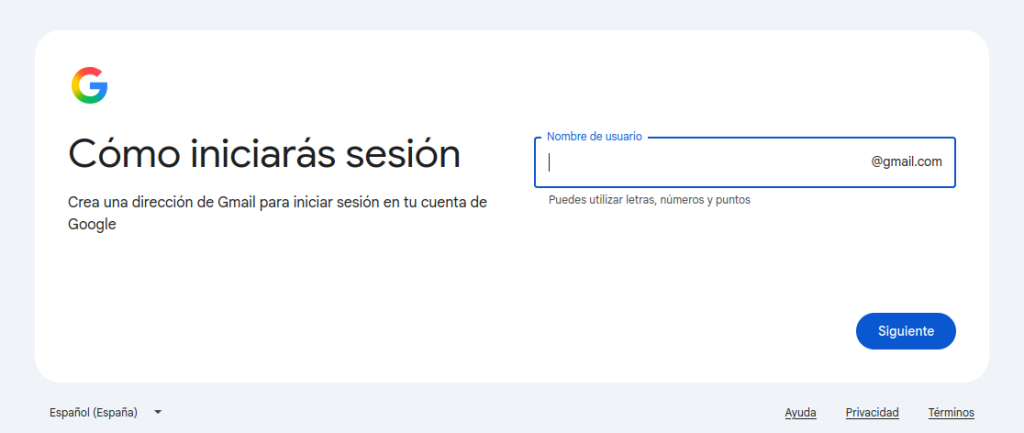
After filling in the details, it will ask for our email.
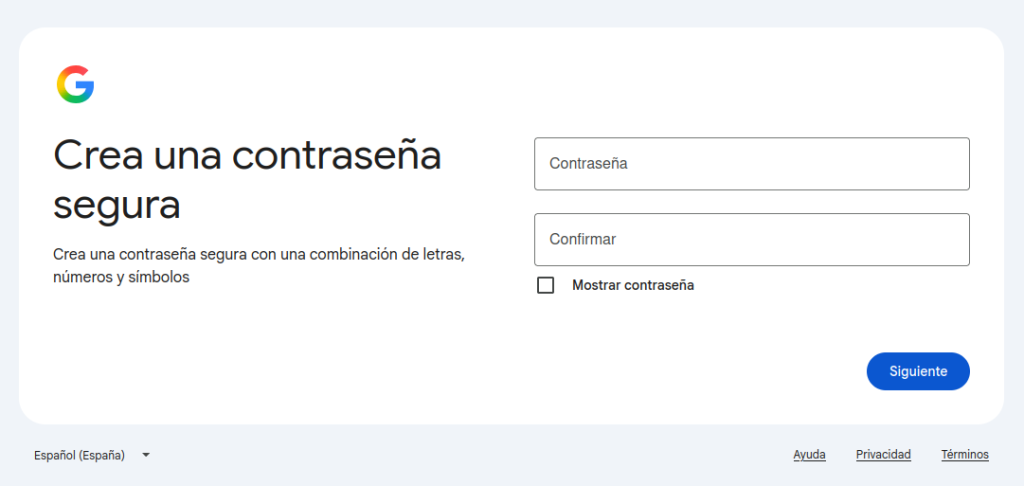
And right after, it will ask for the password.
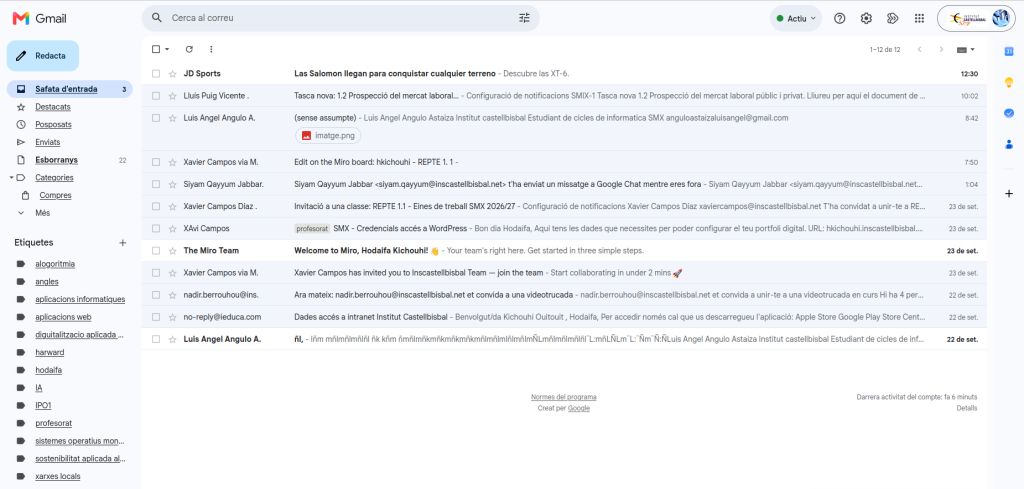
Now comes the part of syncing the chat, which is done by going to the school Gmail.
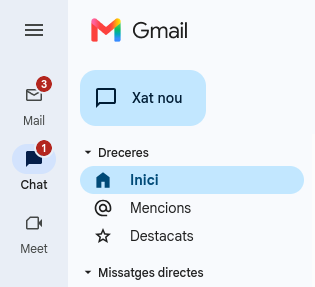
And click on the “chat” section.

Once inside, the chats will already appear, as syncing the email automatically syncs the chat as well.
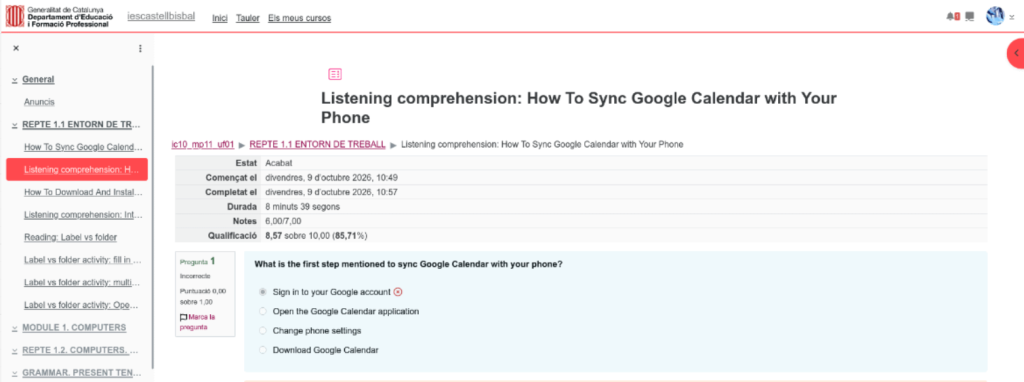
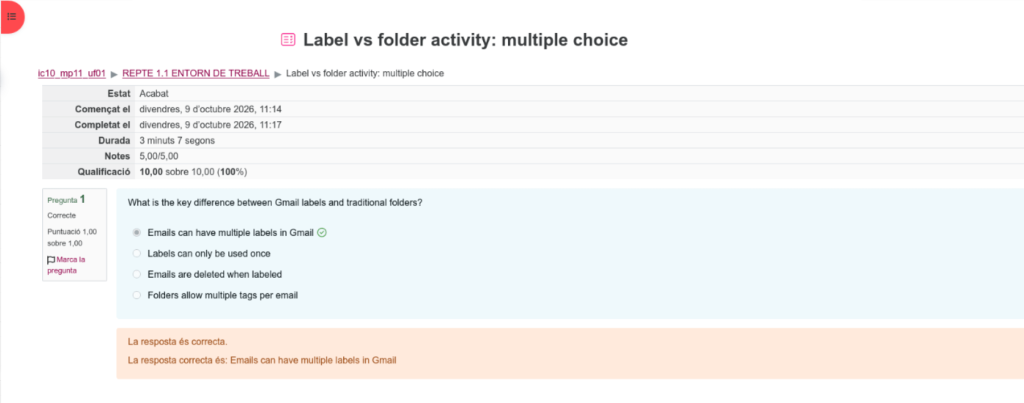

1. Explain how labels in Gmail improve your ability to organize emails compared to folders.
Labels are better than folders because you can put multiple labels on one email, so you don’t have to duplicate messages to keep them in different places.
2. Describe the process of creating a new label in Gmail and applying it to an email.
To create a label, click More in the left menu, select Create new label, name it, and save it. To apply it, open an email, click the Labels icon at the top, select your label, and hit Apply.
3. How can using color-coding and filters together make managing a busy inbox easier in Gmail?
Filters automatically organize incoming emails, and color-coding lets you quickly spot important messages as soon as you open your inbox.
4. With the help of the AI, design a stucure for your email organisation. Attach your conversation with Gemini in word WordPress and aply it in your inbox.
The email structure uses five main labels: Urgent (Red), Pending (Yellow), Info (Blue), Projects (Green), and Routine (Grey). To complete the activity, copy this chat into a new WordPress post and publish it, then set up these labels and automatic filters in Gmail settings.